
Google Workspace și Gemini: lucru eficient cu e-mailuri, documente și foi de calcul
Publicat: 2025-03-07
Acest articol nu este încă tradus complet în această limbă — mai jos este versiunea în engleză.
 Use the side panel to collaborate with Gemini
(For administrators) This feature requires the purchase of an add-on and is not available in every Google Workspace edition. [More information about availability](https://support.google.com/a/answer/13623623)
With the side panel, Gemini supports you in summarizing, analyzing and generating content, using information from emails, documents and other sources — all without having to switch between apps or tabs.
What is the side panel?
The side panel lets you chat with Gemini while working in Google Workspace apps.
You can use it for the following tasks:
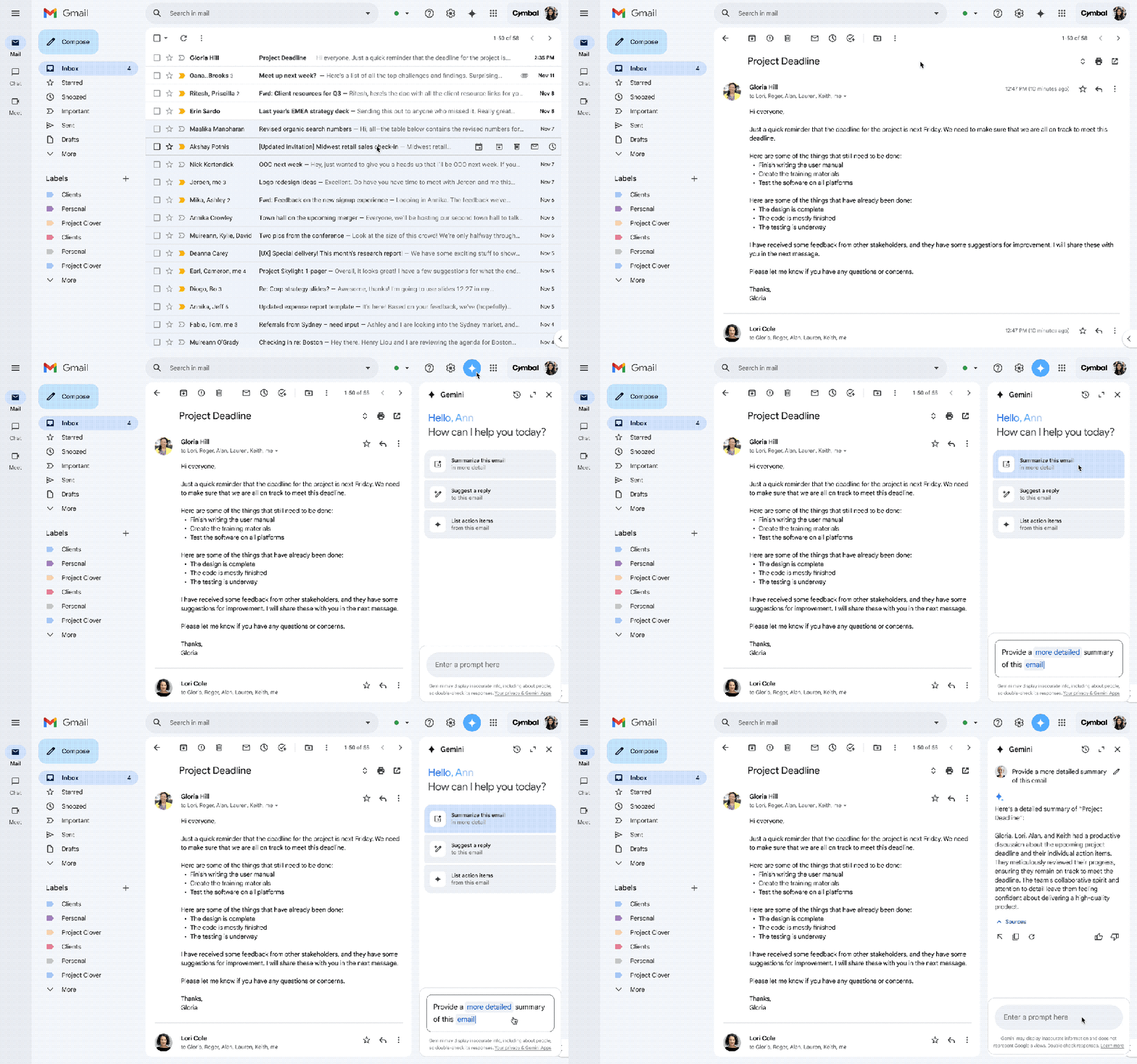
Summarizing long email threads and drafting reply suggestions.
Creating and fine-tuning text based on the document's context.
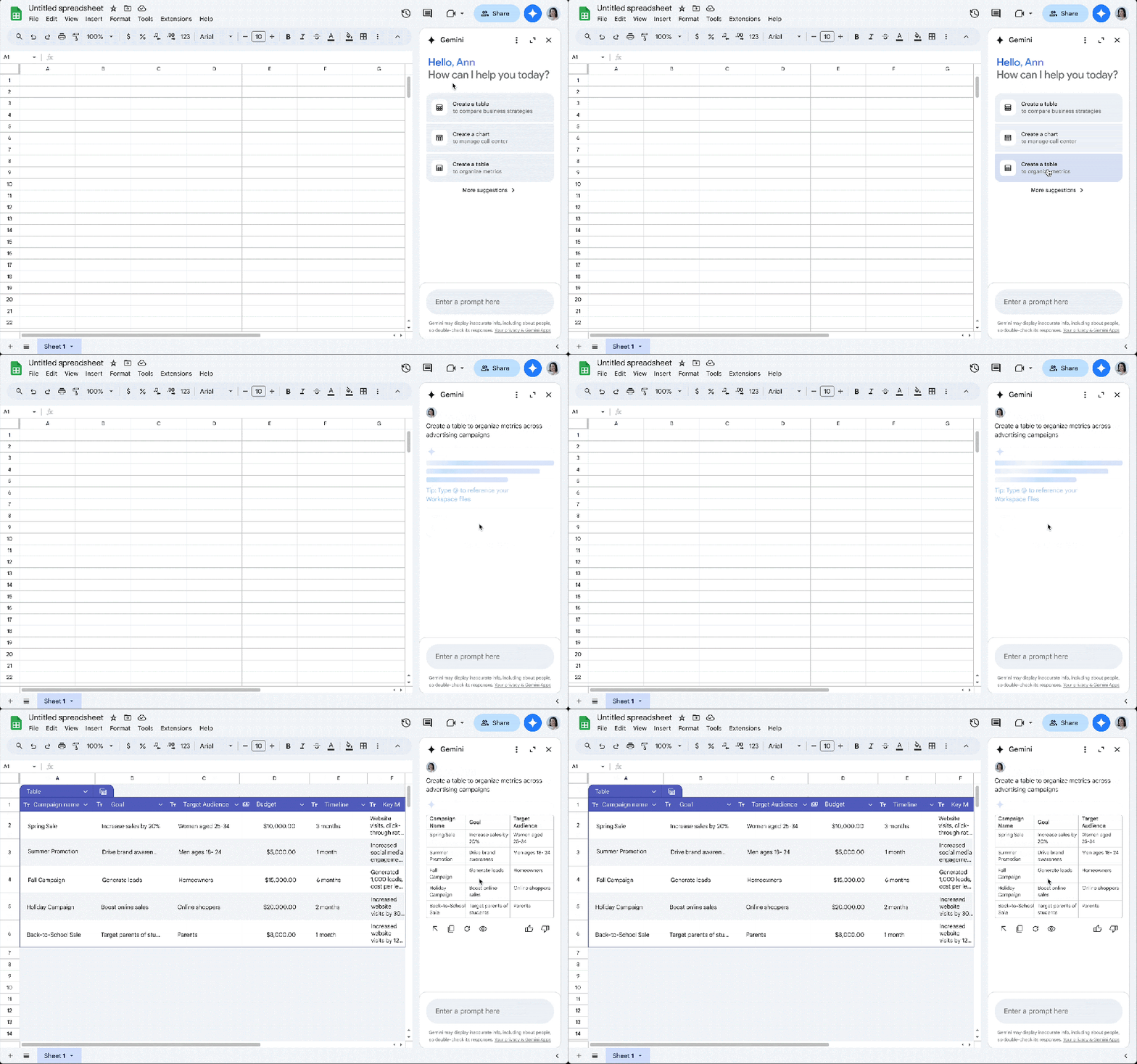
Summarizing spreadsheets, and creating tables and formulas.
Generating new slides, creating images and summarizing presentations.
Asking Gemini questions about files stored in Drive.

Using the side panel in Gmail
Sample prompts in Gmail:
Summarizing an email thread
“Summarize this email.”
“Create a task list based on what's in this email.”
Finding information from previous emails and Drive files
“When is my next flight?”
“What are the main points of the weekly team meeting minutes based on my documents?”
Searching for emails by certain types
“Show my unread emails.”
“Search for emails from \[person's name\] last week.”
More information in the Gmail Help Center

Using the side panel in Google Docs
Sample prompts in Docs
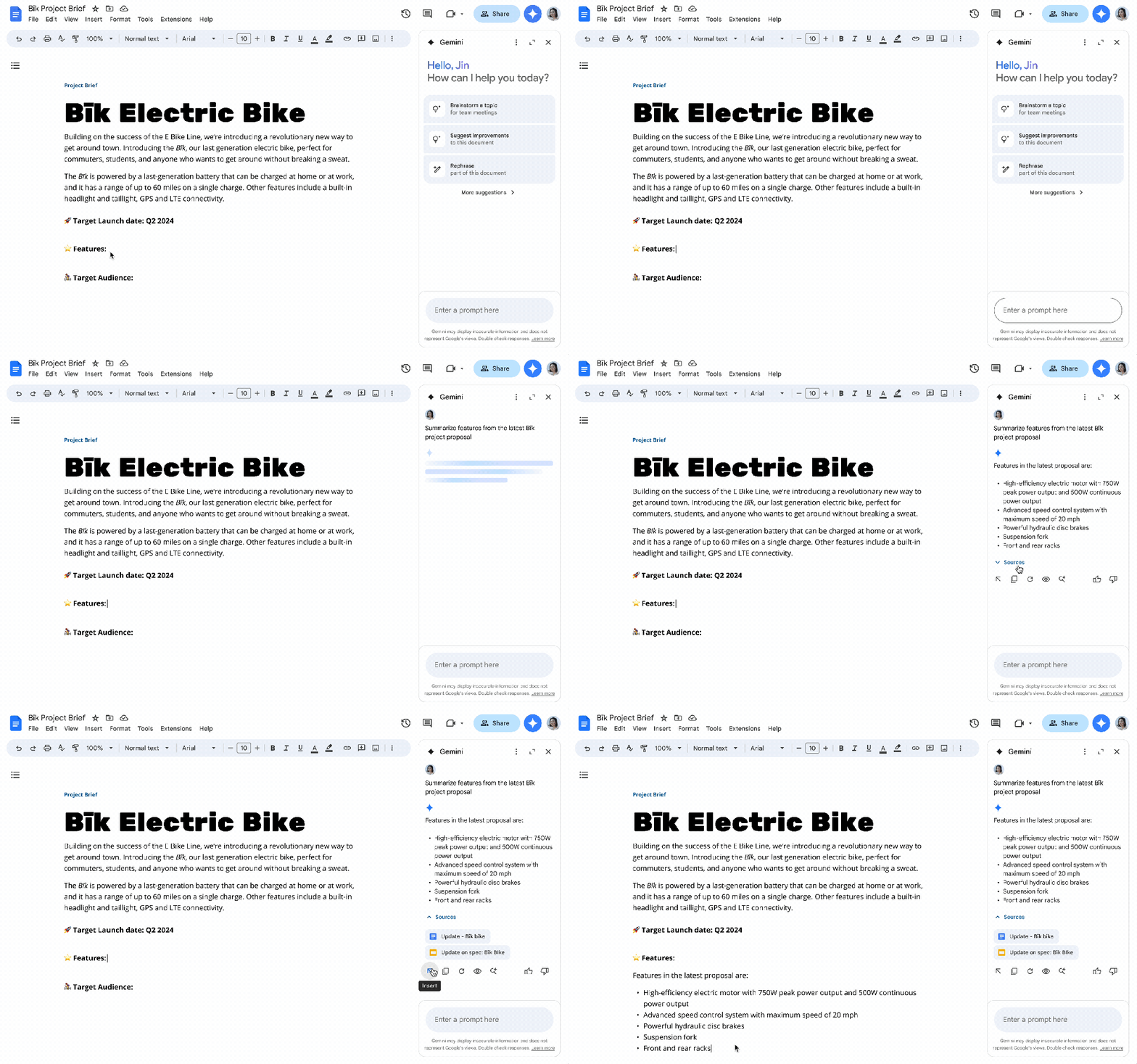
Writing and refining text based on context
“Write an announcement email about a new feature.”
“Make the announcement more fun.”
Summarizing based on Drive files and Gmail emails
“Catch me up on the latest monthly review emails.”
“What are the main points of @Meeting notes: Core team sync?”
Help with Google Docs
“How can I make my document pageless?”
“Can I add comments to the document?”
More information in the Google Docs Help Center
Using the side panel in Google Sheets
Sample prompts in Sheets
Creating formulas
“Create a formula that finds cell C1 in the D:G range and outputs the value in column G.”
“Create a formula that finds the number of unique customers from North America.”
Creating a table
“Create a social media tracker for marketing.”
Quickly understanding a spreadsheet
“Summarize this spreadsheet.”
Help with Google Sheets
“Teach me how to use conditional formatting with a color scale.”
“How can I remove duplicate values?”
More information in the Google Sheets Help Center
Using the side panel in Google Slides
Sample prompts in Slides
Creating images based on slide content
“Suggest images for this slide.”
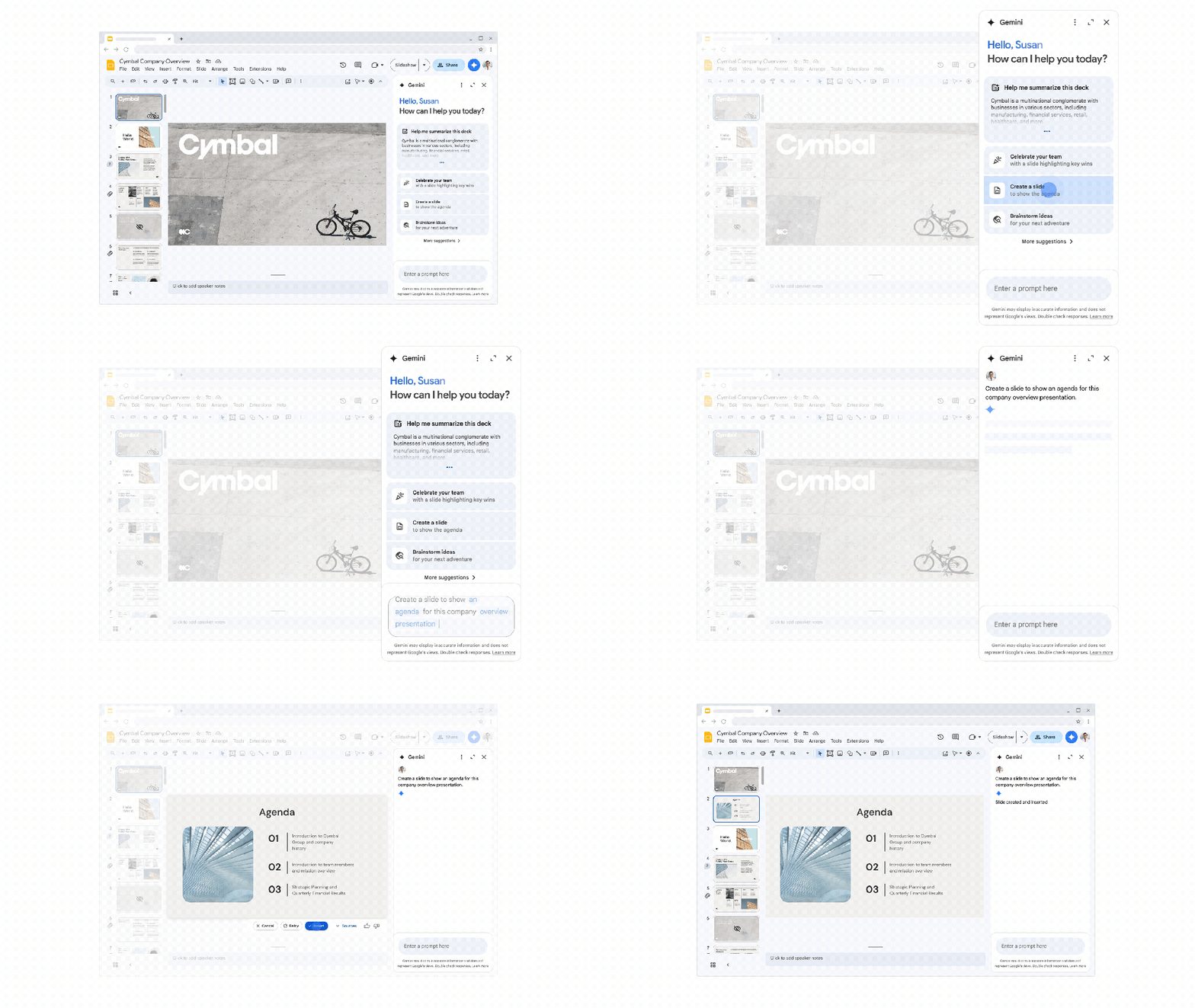
Creating a new slide
“Create a slide about using the SCRUM framework.”
“Create a slide about @Core Team sync.”
Writing content / summarizing a presentation
“Summarize this presentation in 3 sentences.”
More information in the Google Slides Help Center

Using the side panel in Google Drive
Sample prompts in Drive
Select a file and ask Gemini your questions
“Summarize the key points of the Sales team meeting minutes.”
Summarizing based on multiple files with Gemini's help
“Help me understand our team's 2024 strategy.”
“Summarize the Cymbal project.”
More information in the Google Drive Help Center


Using the side panel in Google Chat
On your computer, go to chat.google.com.
Open the Chat standalone app or Chat in Gmail.
In the top right corner, click Ask Gemini.
In the side panel, select a suggested prompt or type your own.
Tip: If the prompt refers to a specific conversation or space, you need to keep that conversation or space open while using Gemini.


Tips:
You may lose your conversation history if:
- You refresh the browser.
- You close and reopen Chat.
- Your computer goes offline.
To delete your conversation history, click the More options menu, then select Clear history.